How to Open an Exness Cashback Account via Connect bridge trading

Opening an Exness Cashback account through Connect bridge tradnig is simple and secure. Follow the steps below to get started:

To create your account, you’ll need to complete email and phone number verification. Additionally, you must prepare the required documents for identity and address verification. Having these documents ready in advance will ensure a smooth registration process.

Required Documents:

1. Proof of Identity (must be valid and unexpired)

  • Passport

  • National Identity Card

  • Driver’s License

2. Proof of Address (issued within the last 6 months)

  • Resident Registration Card or National Health Insurance Card

  • Utility Bills (Electricity, Gas, Water)

  • Internet, Cable TV, or Telephone Bills

  • Bank Statement or Deposit Certificate

Start your journey with Connect bridge trading today and enjoy cashback benefits on your Exness trading account.

How to Open Your Current Rebate Account

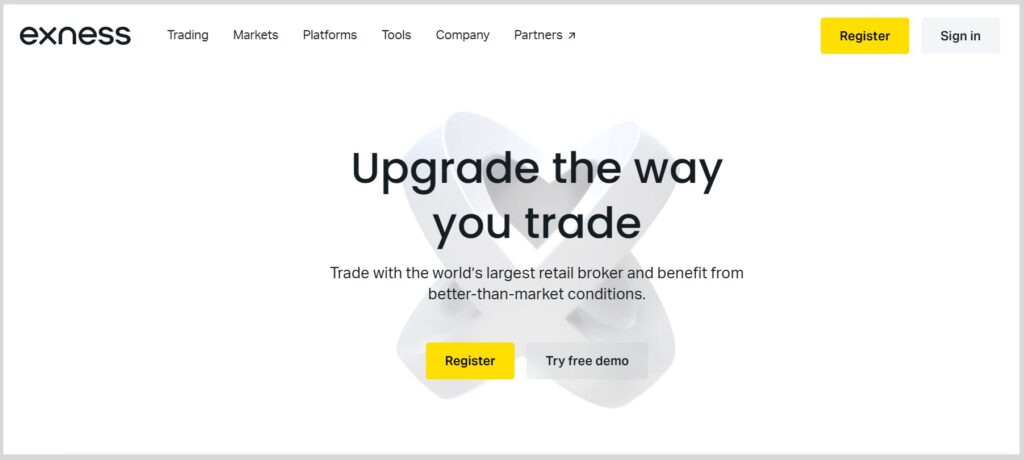
Click the button below to access the Exness account registration page.

Setting up an Account

Please click “Register” at the top right or bottom left of the screen.

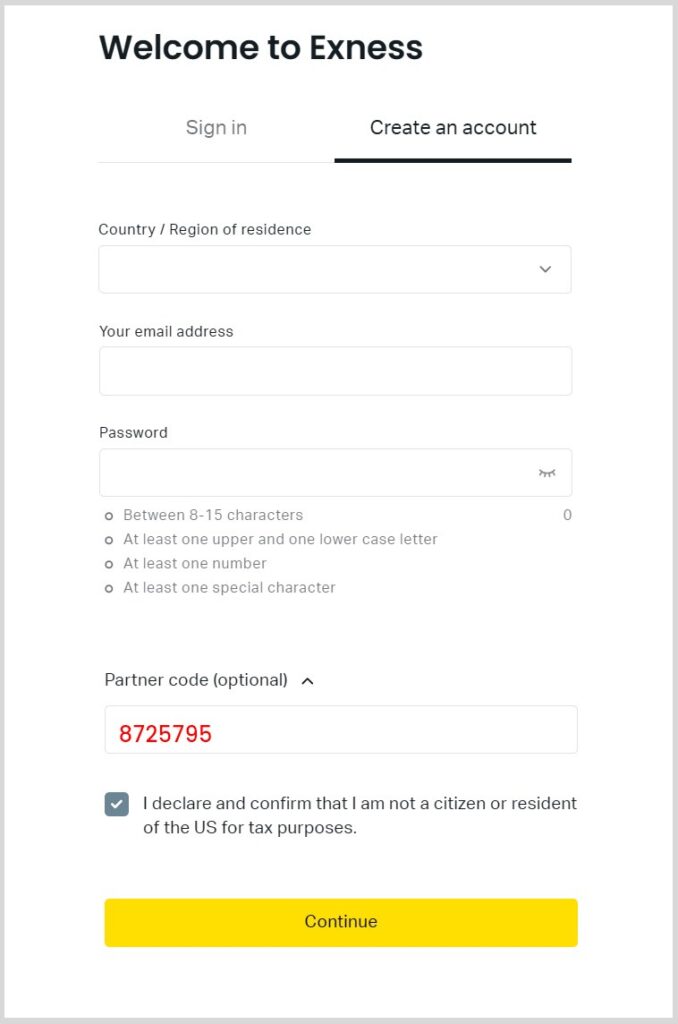
Enter your Country of Residence, Email Address, and create a Password of your choice.

In the Partner Code (optional) field, be sure to enter our partner code: 14258162.

Tick the checkbox and click Continue to proceed.

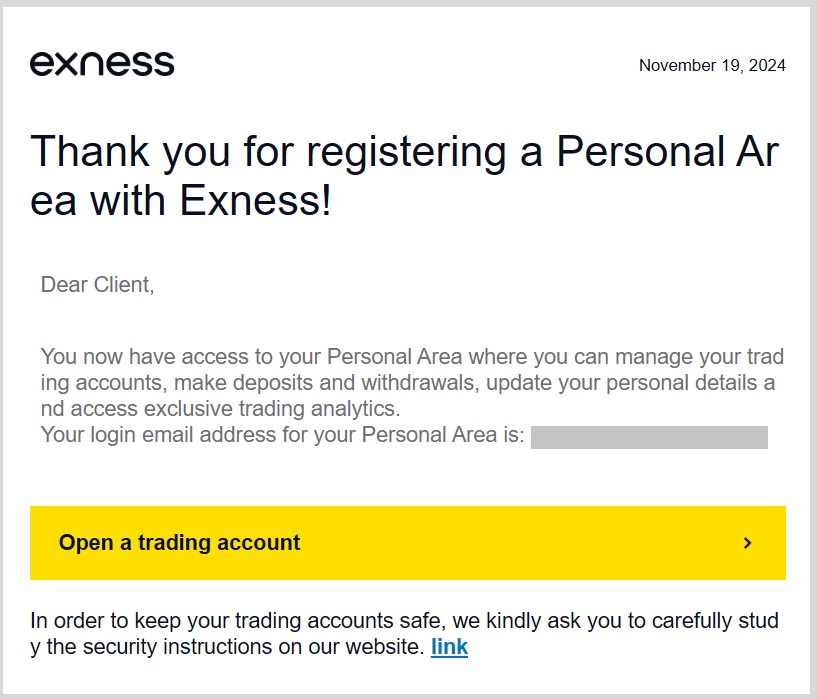
A verification email will be sent to the address you just provided. It will look similar to the example shown below.

To complete your email verification, simply click on the “Open Trading Account” link in the email.

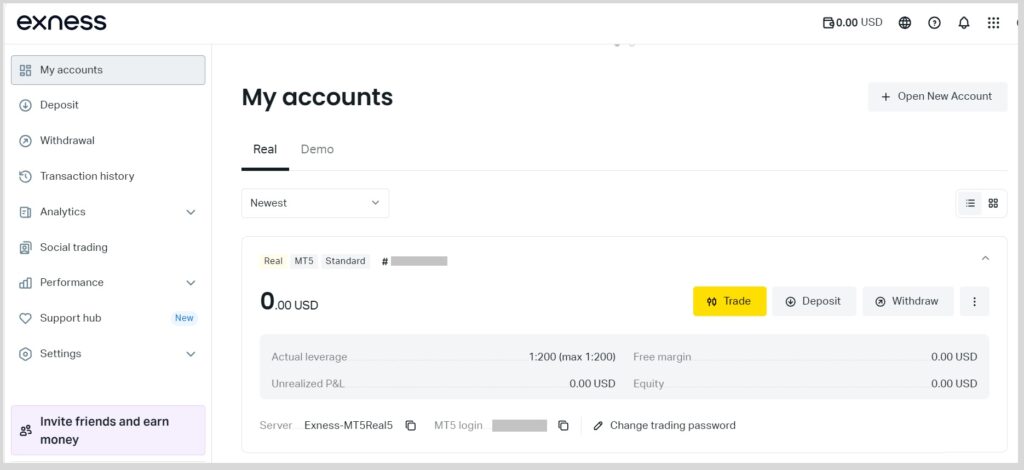
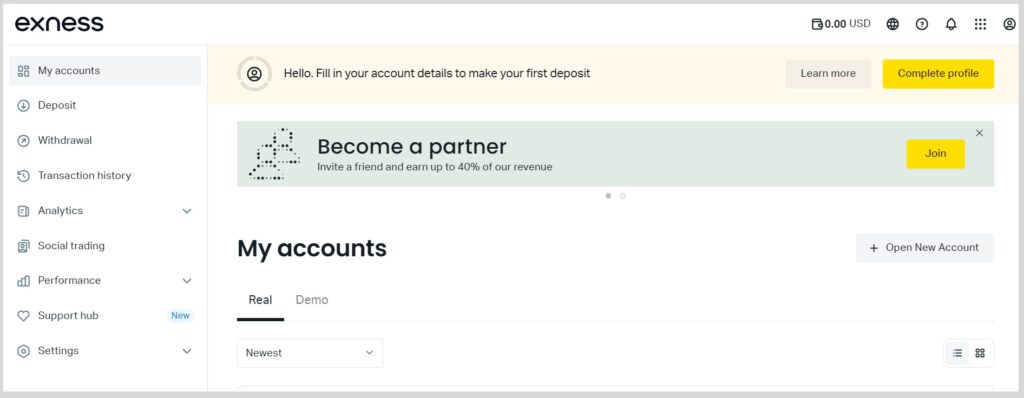
Once verified, you’ll be able to log in to your personal dashboard.

By default, an MT5 live and demo trading account will be created for you. However, you can open additional accounts anytime by clicking on the “New Account Opening” button.

If you’re required to submit and verify your personal information, please proceed to the ‘Personal Details Entry’ section below.

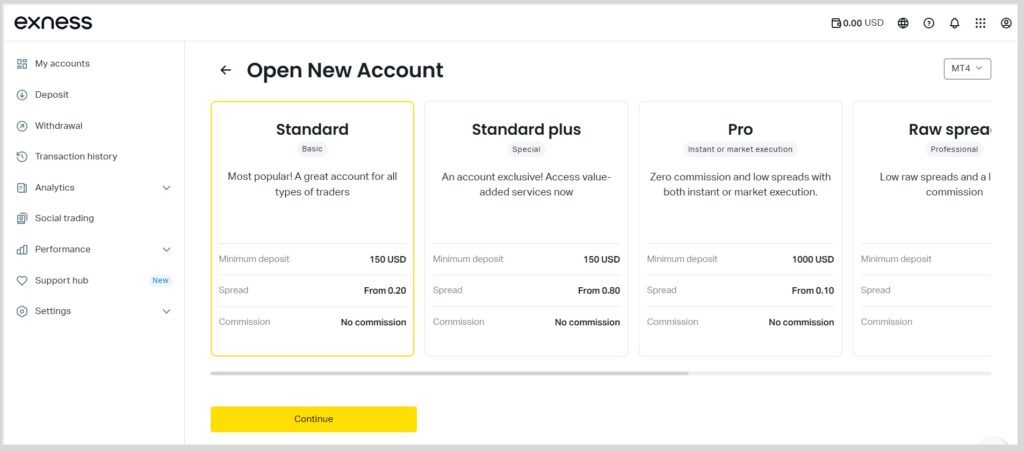
Click on “New Account Opening”, then choose your preferred trading platform (MT4 or MT5) from the options in the top-right corner of the screen.

Next, select your desired account type and click “Continue” to proceed.

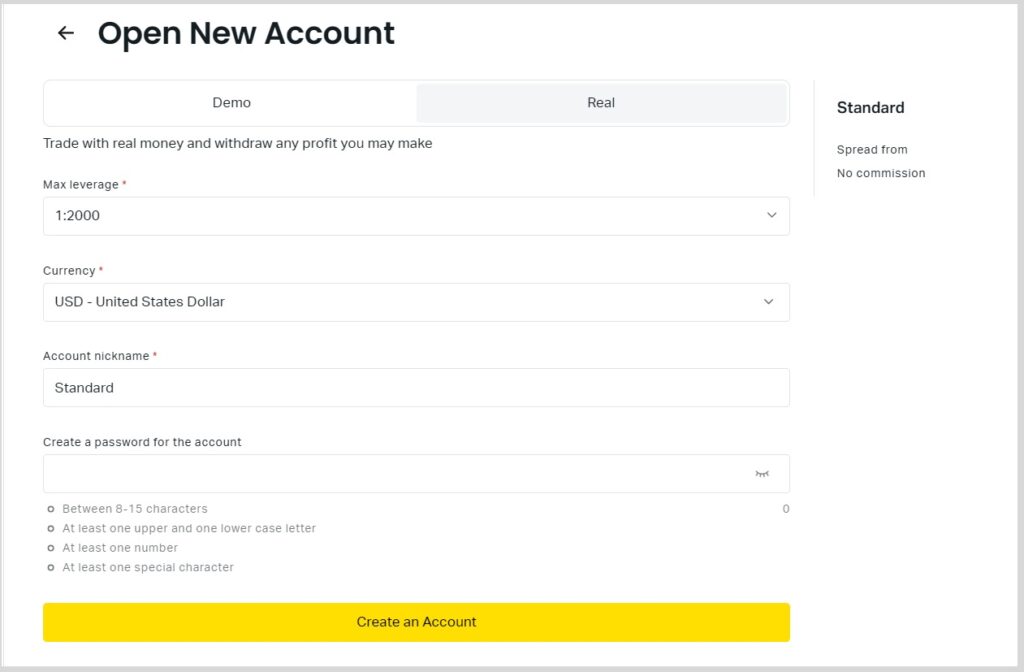
Choose your preferred account settings, such as leverage, account currency, and other options.

Then, create your Account Alias and Account Password, and click “Open Account” to finalize the setup.

Entering Your Personal Information

The next step is to provide your personal details.

Log in to your personal area and click on “Complete Profile” located at the top right corner of the screen.

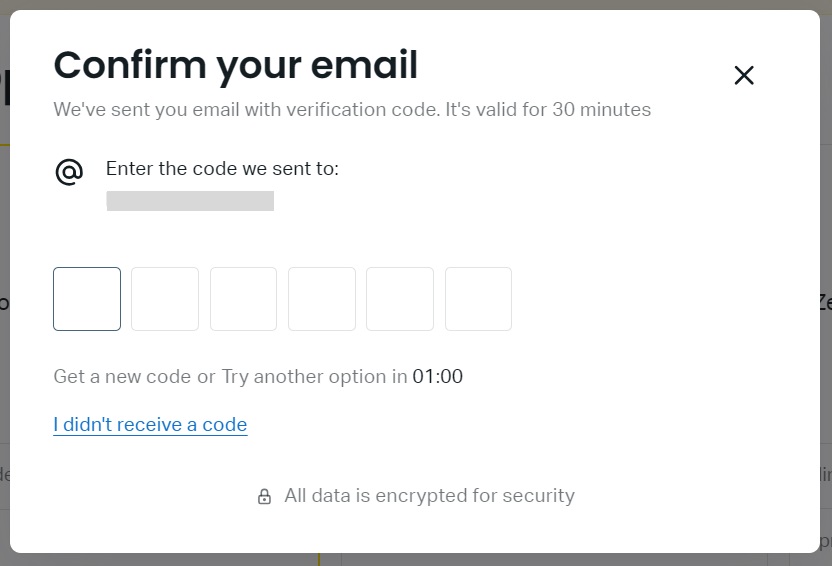
Please authenticate by email and click “Receive Verification Code”.

To complete your registration, enter the six-digit verification code sent to your registered email address within the given time limit, then click “Continue”.

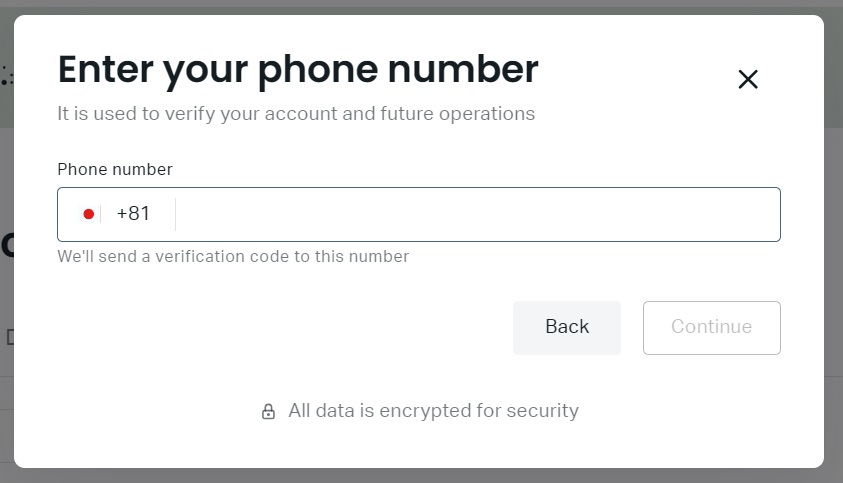
The next step is to verify your phone number.

Enter your Phone Number, choose your preferred method to receive the code (SMS or Call), and click “Continue” to proceed.

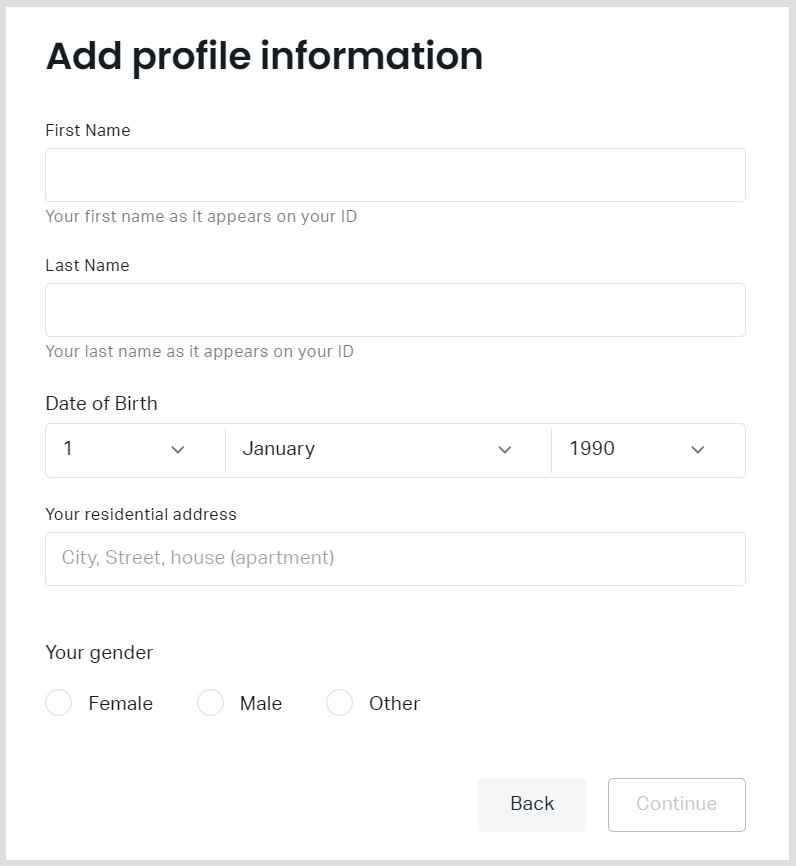
Once your phone number is verified, proceed to enter your personal details.

Fill in your First Name, Last Name, Date of Birth, Current Residential Address, and Gender, then click “Continue” to move forward.

Required Document Upload

Once you’ve entered your personal information, the next step is identity verification.

Click on “Complete Authentication” located at the bottom of the screen to proceed.

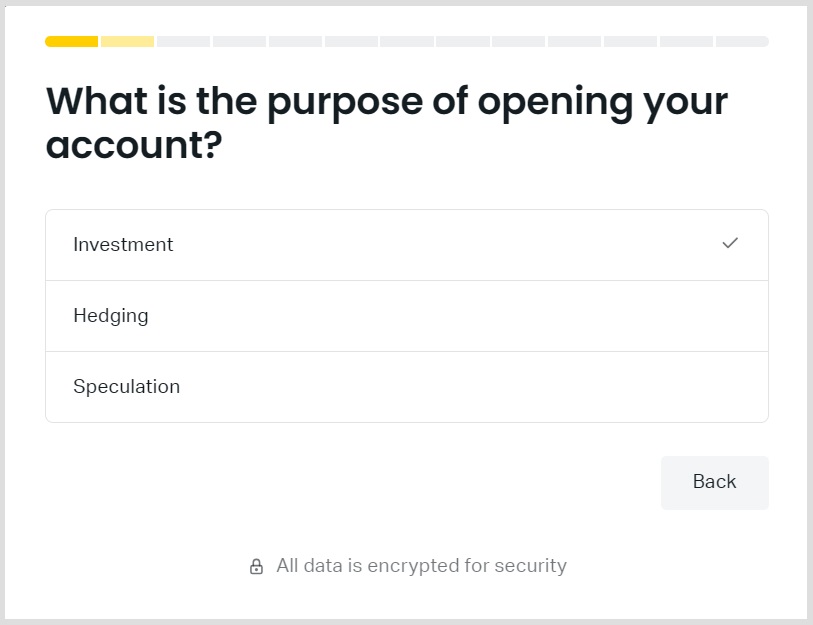
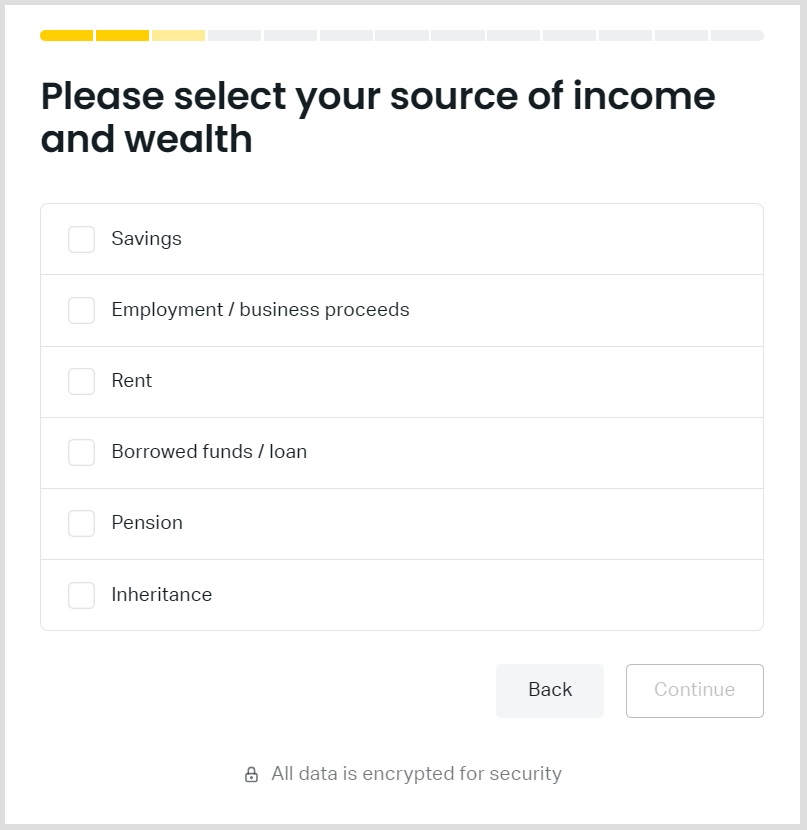
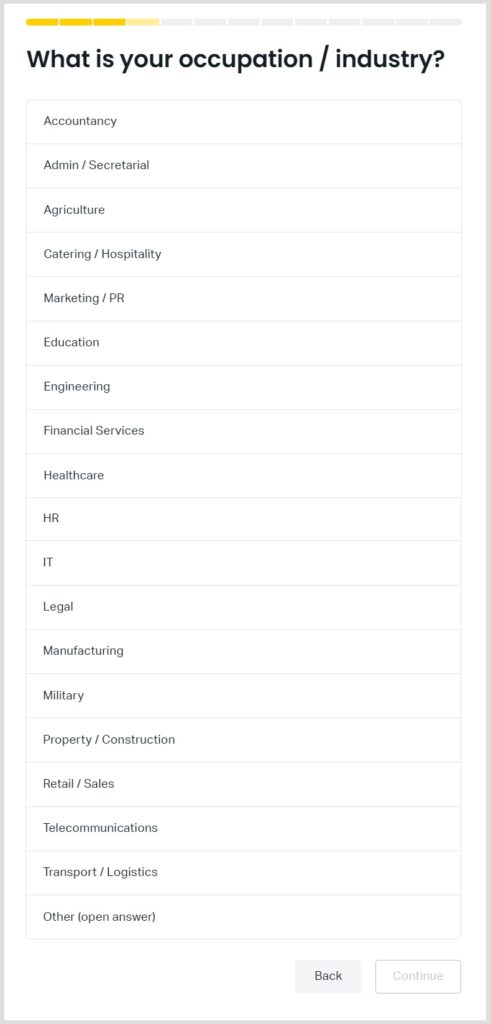
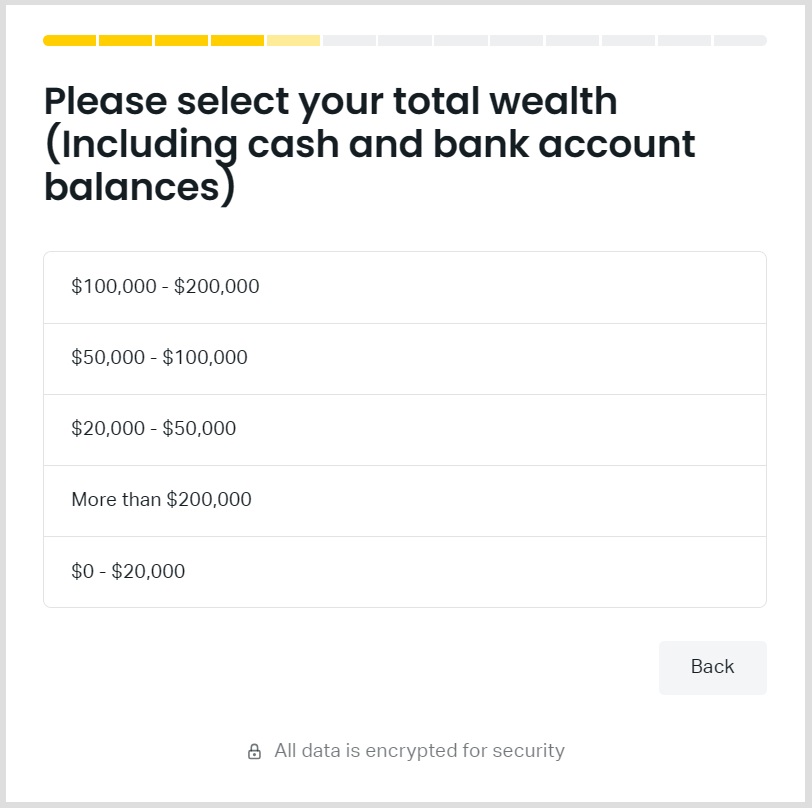
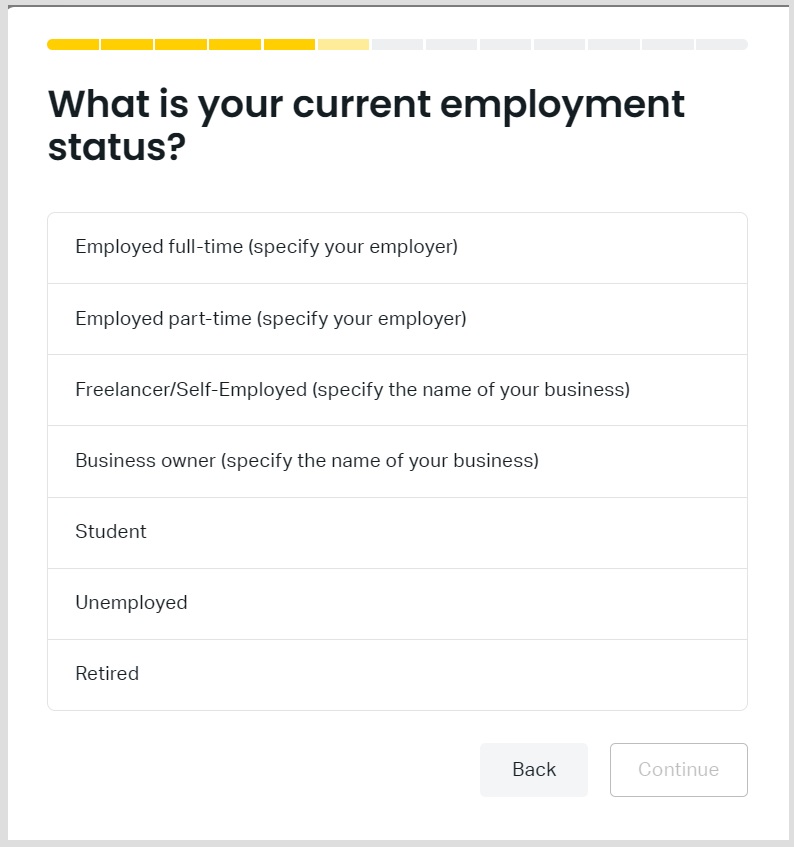
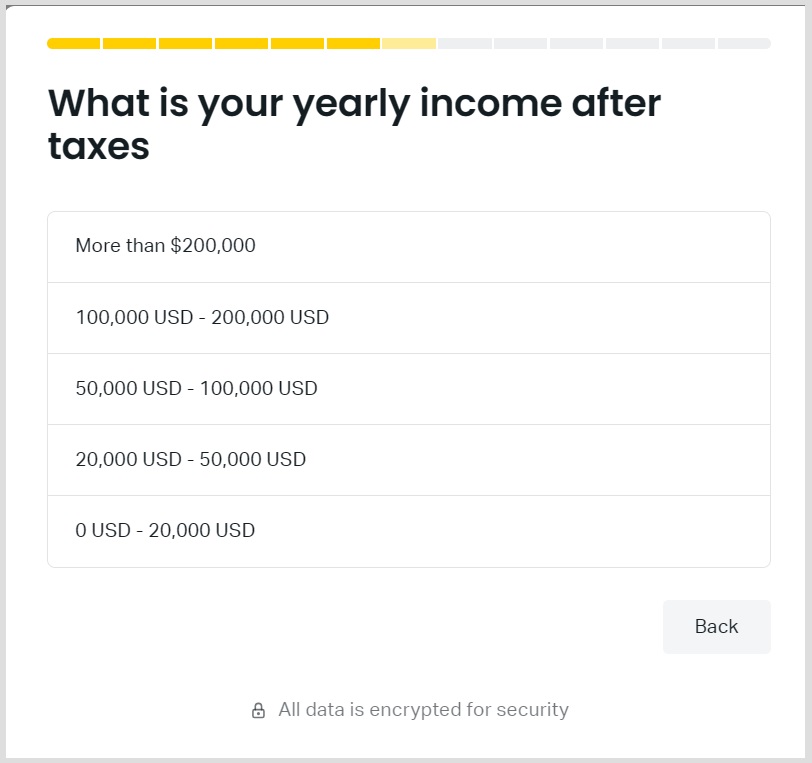
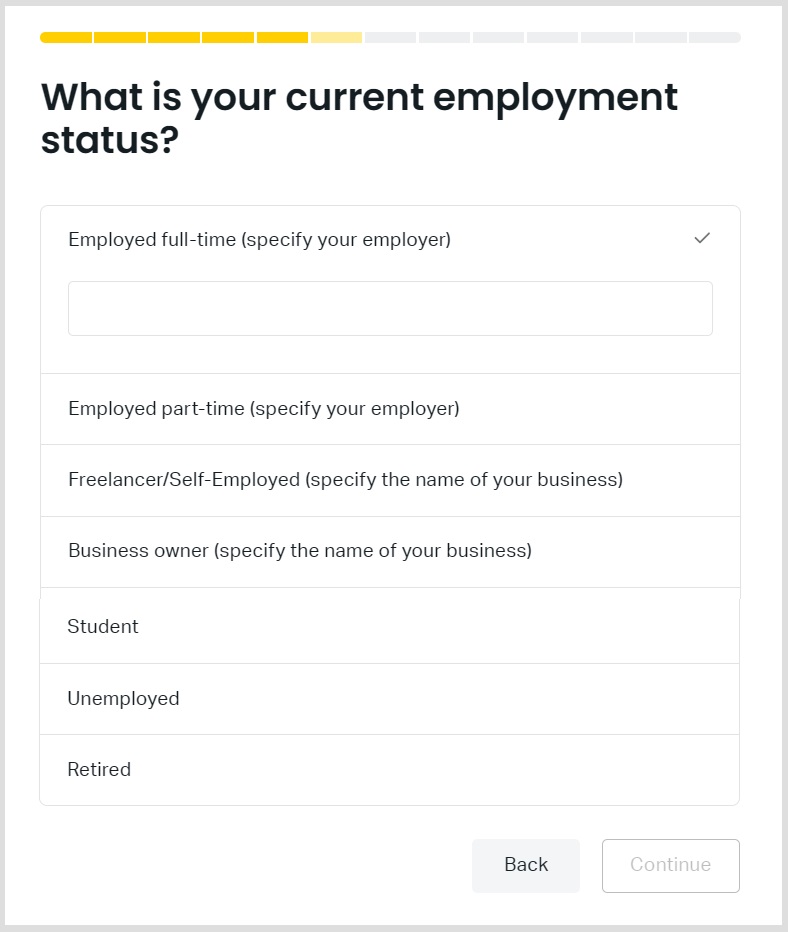
Please respond to the questions regarding your financial status, including your employment situation and trading experience.

Choose the options that best reflect your current circumstances, then click “Continue” to proceed.

The next step is to upload the required documents.

Verify that your registered name is correct, then click “Upload Files” to proceed.

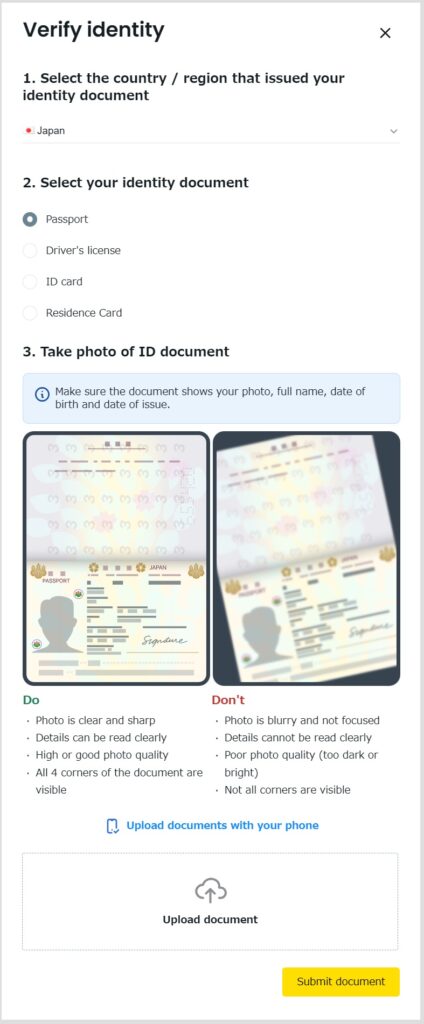
Please choose the Country of Issue and the type of Identity Document you wish to submit.

Upload your selected identification documents and click “Submit Documents” to continue.

After completing the steps above, you’ll be ready to begin the verification process.

The Exness verification is typically completed within a few minutes, though in some cases it may take up to 24 hours.

The next step is to upload your proof of address document.

Once you’ve uploaded the required file, click the “Send Documents” button to proceed.

Employment Status

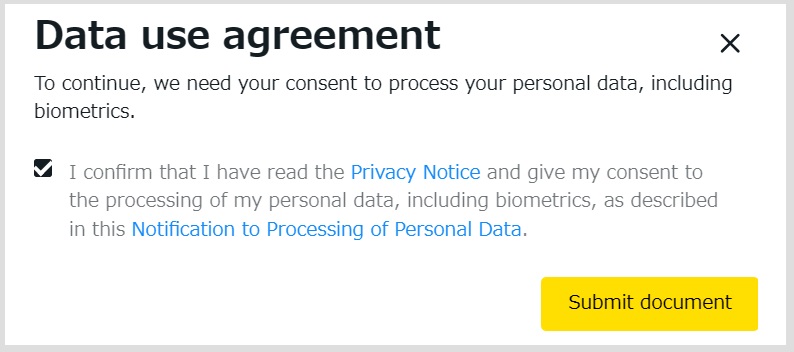
Data Agreement.

Verify Identity.

Completed all the Question, You are Good!

How to Register for an Account with Our Company, Connect bridge trading

After completing your application, you can move forward with creating your Connect bridge trading.

Start by clicking the link below to access the account registration page.

On the account registration screen of the application, please enter your “Name”, “Email Address”, “Password” and “Confirmation Password” and click “Go to Confirmation Screen”.

Connect bridge Registration Page

Account Registration Application

After completing your registration, a confirmation email will be sent to the address you provided.

Click the URL in the email to finalize your account setup.

Next, visit the login page and sign in using your newly created account number.

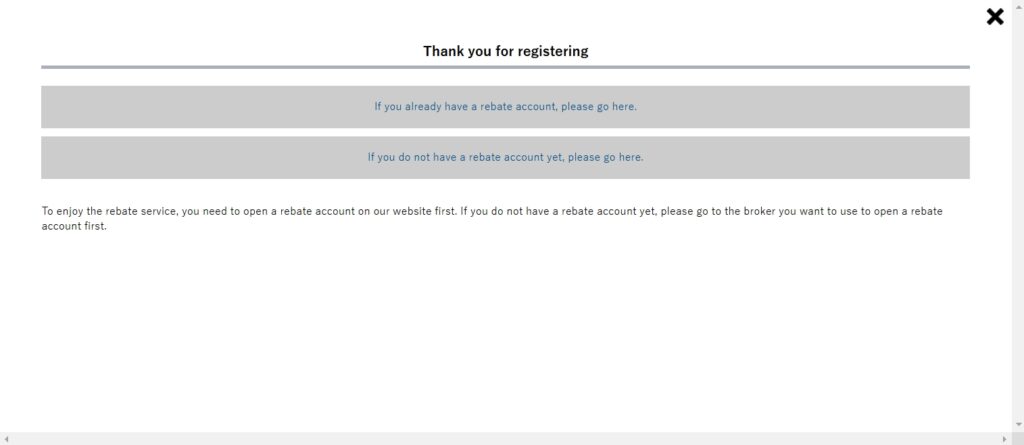
If you see the screen shown below after logging in, click the “Already have a rebate account” button.

If that screen does not appear, navigate to the “Seat Management” menu instead.

You will be taken to the account registration page.

In the “Business Name” field, select “Exness”, then enter your Exness account number and click “Login” to proceed.

Connect bridge trading User Page

Account Registration

Account Overview

If all the information you provided is correct, you will receive a confirmation email indicating that your registration was successful.
If there are any issues, you’ll receive an email notifying you that the registration was unsuccessful.

In case of a failed registration, please follow the instructions in the email to open an additional account.

These are the complete steps for opening an Exness rebate account and registering with our platform.